README
GHEditor - MarkDown Editor
GHEditor is a lightweight, flexible, highly customizable markdown editor for your web applications. It is a drop-in JavaScript textarea replacement for writing beautiful and understandable Markdown.
GHEditor allows users who may be less experienced with Markdown to use familiar toolbar buttons and shortcuts. If you never have written a single line in markdown markup, don't worry, it's easy to learn and even easier to use. You'll probably be surprised how handy it is once you get used to it. And you'll miss it whenever the tech you're using doesn't support markdown.
Why use GHEditor?
GHEditor is one of the first markdown editors to implement an all-in-one cloud-based file-storage, built-in autosaving, custom-designed-icons, code-highlighting, emoji-integrated, height-auto-grow and split-screen-preview features.
It is also designed to clone Github's markdown editor features and implements most Github flavoured markdown syntax and much more.
In other words, GHEditor uses and produces almost all Github markdowns and their equivalent HTML markups and solves the problem of having a Github-flavored markdown editor embedded in your web application just by a simple installation.
Plus, GHEditor can be rendered natively on more than one textarea elements in a web page. It also uses a simple HTML-sanitizer to produce safe tags.
GHEditor Editor has been written using vanilla JavaScript, no additional frameworks required.
Demo
See Live Demo
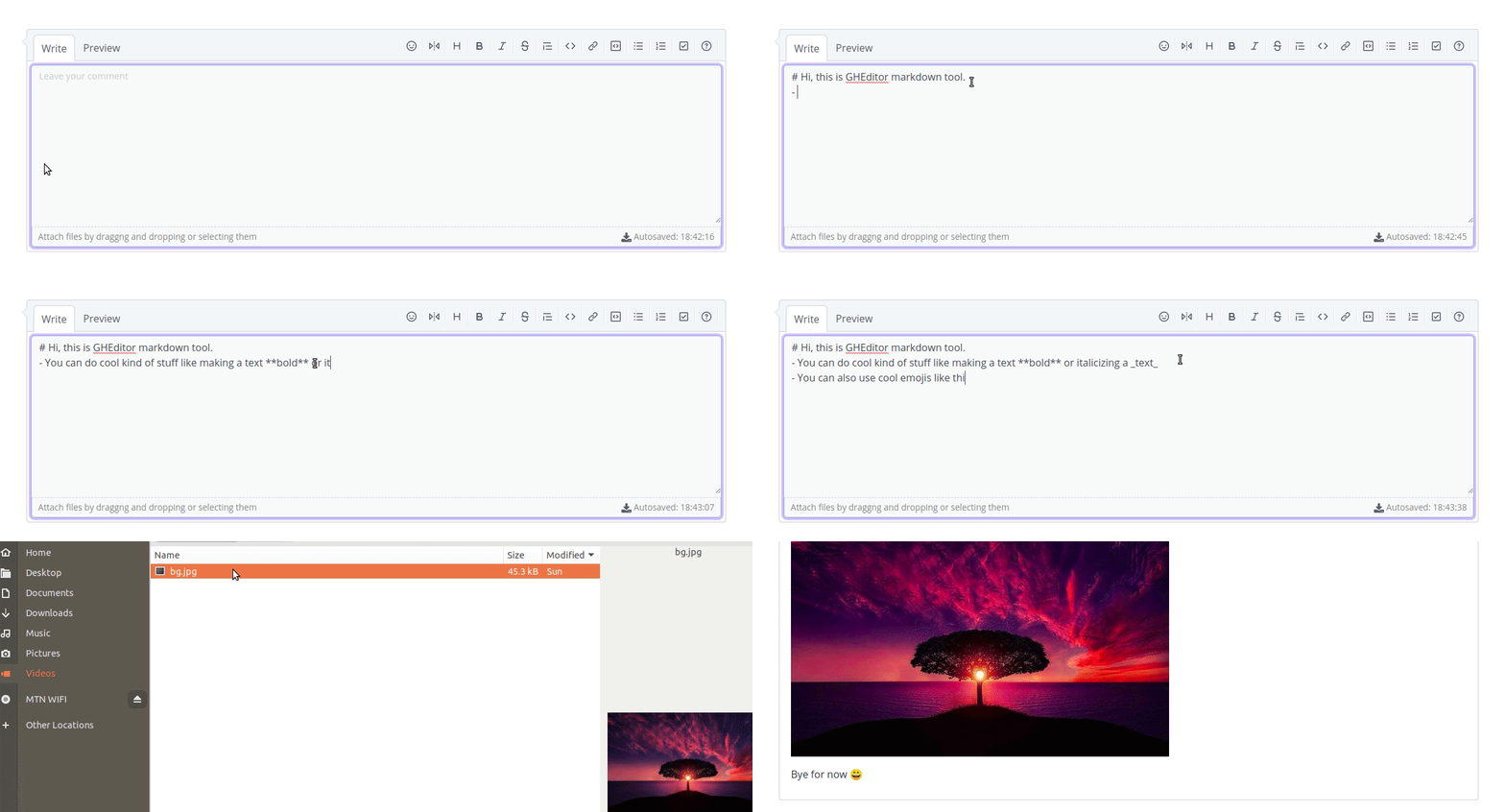
Table of Contents
- Installation
- Quick Start
- Useful methods
- Configuration
- Toolbar icons and keyboard shortcuts
- Contributing
Installation
Via npm.
npm install gheditor
Via jsDelivr. Please note, jsDelivr may take a few days to update to the latest release.
<script src="https://cdn.jsdelivr.net/gh/adaorachi/ghEditor@1.7/@gheditor/dist/main.js"></script>
Quick Start
In order to import the stylesheet for this module and use the module from within JavaScript, you need to install and add the style-loader and css-loader to your module configuration.
npm install style-loader css-loader --save-dev
Also you need to install and add the sass-loader and sass.
npm install sass-loader sass --save-dev
And then, webpack is also needed to configure the SASS settings.
npm install webpack --save-dev
Add the SASS module into your module configuration, which is usually in the webpack.config.js file.
module.exports = {
  module: {
    rules: [
    {
      test: /\.s[ac]ss|.css$/i,
      use: [
        'style-loader',
        'css-loader',
        {
          loader: 'sass-loader',
        },
      ],
    },
  ],
  },
};
After installing and defining the above dependencies, you can initialize ghEditor by the following steps;
Define a textarea element in an HTML page. A
classofghEditormust be added to the textarea element.Add an
idattribute of your choice (this is optional). When noidattribute is added, ghEditor is initialized on the first textarea in a page and that has a class ofghEditor.
<textarea class="ghEditor" id="textarea-1"></textarea>
- Initialize ghEditor in a JS file
To initialize ghEditor for the first textarea on a page
Node
const ghEditor  = require('gheditor');
const ghEditorText = ghEditor();
ghEditorText.markDown();
ES6
import ghEditor from 'gheditor';
const ghEditorText = ghEditor();
ghEditorText.markDown();
Browser
<script>
  document.addEventListener('DOMContentLoaded', function () {
    const ghEditorText = ghEditor();
    ghEditorText.markDown();
  })
</script>
To initialize ghEditor for a specific textarea or for mutiple textarea elements in a page. An object is needed to be passed as a param and set the 'container' value to the 'id' of the textarea container. When no container key/value is added, it defaults to the first textarea element in a web page. The above can be applied with the initialize methods stated above. For example:
ES6
import ghEditor from 'gheditor';
const ghEditorText = ghEditor();
ghEditorText.markDown({container: 'textarea-1'});
Useful methods
The following self-explanatory methods may be of use while developing with GHEditor.
Get the text content of the editor
Note that this method should be called when an action takes place; like a submit event listener in order to get the full content.
  const ghEditorText = ghEditor();
  ghEditorText.getValue()
Set the text content of the editor
Note: When autosave option is set to true, the content of the editor will be overwritten when a change is made and saved.
  const ghEditorText = ghEditor();
  ghEditorText.setValue('This text will appear in the editor')
Sync gheditor editor value to default textarea
This syncs the text content of the editor to the default textarea and returns the content. Note that this method should be called when an action takes place; like a submit event listener in order to get the full content.
  const ghEditorText = ghEditor();
  ghEditorText.syncValue()
Getting option
GHEditor provides a method to retrieve; Note: Log the variable to the console to see result.
a set option
const ghEditorText = ghEditor();
const anOption = ghEditorText.getOption(<optionKey>);
all custom options
const ghEditorText = ghEditor();
const allOptions = ghEditorText.getOptions();
Retrieve the default options
You can get ghEditor's default options with:
  const ghEditorText = ghEditor();
  const defaultOptions = ghEditorText.getDefaultOptions();
Configuration
The following are the set of valid options that can be used in GHEditor. When the GHEditor editor is loaded, it inherit the following computed styles from the default textarea - 'fontSize, color, fontFamily, margin, padding'. These styles can be overwritten and more styling properties can be added with the frameStyles option.
- autoUseFontAwesome: (Boolean) This defaults to
falsewhich intelligently check whether Font Awesome (used for icons) has already been included in a web app, and if not, it installs it accordingly. If set tofalse, prevents installation. When set totrue, Font Awesome icons can be added in the textarea input just like you would in an HTML markup, e.g -<i class="fa fas-smiley"></i>. - autoSave: (Object) This saves the textarea content that is being written and will load it back in the future or when the page is refreshed. The saved input or text is automatically cleared when the form it's contained in is submitted. GHEditor automatically uses the textarea
idas the unique string identifier for its saved content. Do ensure that each textarea has a uniqueid.- enabled: (Boolean) If set to
true, autosaves the text and also provides a save button which when clicked saves content instantly. It also shows the saved timestamp. Defaults tofalse. - delay: (Number) Delay between saves, in milliseconds. Defaults to 10000 (10s).
- enabled: (Boolean) If set to
- allowedAttributes: (Array) This receives a list of HTML attribute that should be allowed to be parsed into HTML markup for sanitizing. Here is the default array -
['class', 'id', 'href', 'align', 'alt', 'target', 'src'] - allowedTags: (Array) This receives a list of HTML tags that should be allowed to be parsed into HTML markup for sanitizing. Here is the default array -
['h1', 'h2', 'h3', 'h4', 'h5', 'h6', 'blockquote', 'p', 'a', 'ul', 'ol', 'nl', 'li', 'b', 'i', 'span', 'strong', 'em', 'strike', 'abbr', 'code', 'hr', 'br', 'div', 'table', 'thead', 'caption', 'tbody', 'tr', 'th', 'td', 'pre', 'iframe', 'img', 'details', 'summary', 'figure'], - disallowedAttributes: (Array) This receives a list of HTML attributes that should not be allowed to be parsed into HTML markup for sanitizing. It defaults to an empty array.
- disallowedTags: (Array) This receives a list of HTML tags that should not be allowed to be parsed into HTML markup for sanitizing. It defaults to an empty array.
- blockStyles: (Object) This defines and customize the markdown syntax for how certain buttons that style blocks of text behave.
- bold: (String) Can be set to ** or __. Defaults to **.
- code: (String) Can be set to ``` or ~~~. Defaults to ```.
- italic: (String) Can be set to * or _. Defaults to _.
- frameStyles: (Object) This contains a key-pair-values of style properties and their equivalent values that should be applied to the textarea. The styling syntax must be written just like it would in JavaScript and not in CSS. E.g - Instead of
font-family: 1rem, it should befontSize: '1rem'. - headerToolbar: (Object) This defines the toolbar icons used for editing contents in the editor.
- icons: (String) The following is the complete set of icon names in GHEditor, -
heading|bold|italic|blockquote|strikethrough|horizontal-rule|code|link|code-block|unordered-list|ordered-list|tasklist|mention|image|table. By default, ghEditor only include the following subset of icon names -heading|bold|italic|blockquote|strikethrough|code|link|code-block|unordered-list|ordered-list|tasklist|. Other icon names from the complete set and not included in the subset above can be added to it or removed likewise. To define a subset of icon names, it must be separated with a|, e.g -heading|bold|italic. And the equivalent icons are displayed in the order their names are defined.
- icons: (String) The following is the complete set of icon names in GHEditor, -
- hideToolBar: (Boolean) This hides the toolbar when set to
trueand display it when set tofalse. It defaults tofalse. Should this option be set totrue, it is recommended that the splitScreenShortcut option be set totrue. This is to enable users toggle the preview panel by keyboard shortcuts, since the preview button is not displayed. - highlightCode: (Boolean) If set to
true, will highlight code syntax using highlight.js and otherwise if set tofalse. Defaults totrue. - indentWithTab: (Boolean) If set to
true, indent content using tabs. Defaults tofalse. When set to true, it is important to be aware of your web app users navigation preference. Navigating with tabs in the web page can no longer be possible. - inlineAttributes: (Boolean) Defaults to
false. If set totrue, it allows defining CSS classes, and elements IDs and attributes that are enclosed in curly braces -{}. In order to use this, Classes are defined with a period like so -.class-1. Ids are defined with an hash symbol -#id-1. Other attributes are defined just like you would for any HTML tag, like so -aria-label="true". Note that for this to work, these attributes must be defined just below the line of text it will be applied to and ensure a empty line is left after it. E.g -Paragraph {: .class .class-1 .class-2} Paragraph {: #custom-id} - inlineEmoji: (Object) This sets the emoji container in the editor textarea with the first five filtered emoji icons and names when the emojiPrefix is inputted and the subsequent characters after it, considering that the inputted characters has an equivilant emoji name and there is no space or the Enter key is not hit.
- enabled: (Boolean) If set to
false, disables the inlineEmoji. Defaults totrue. - emojiPrefix: (String) This sets a character that is inputted followed by the name of the emoji. When inputted, GHEditor recognizes it as the emoji prefix and the emoji suggester dropdown is made visible. The emoji prefix must be picked from the following set of prefixes -
[':', '-', '/', '!', '#', '
- enabled: (Boolean) If set to