README
vue-phylogram
Synopsis
Vue component for displaying phylogenetic trees
Installation
npm install --save vue-phylogram
Features
- Sources: json or newick
- Zoom & Pan
- Display branch lengths or not
- Circular or linear layout
- Metadata on nodes, branches and labels (size, color)
- Display pies on nodes
- Collapse nodes
Browse the tree
- Zoom with the mouse wheel
- Drag & drop to move into the tree
- Hover a node or a label to increase its size
- Select/Deselect a node by clicking on it and by choosing "Select/Deselect" in the menu
- Collapse/Expand a node by clicking on it and by choosing "Collapse/Expand" in the menu
Import in a .vue file
import { VuePhylogram } from 'vue-phylogram';
Data Sources
The following tree can be represented by two formats : newick or json object.
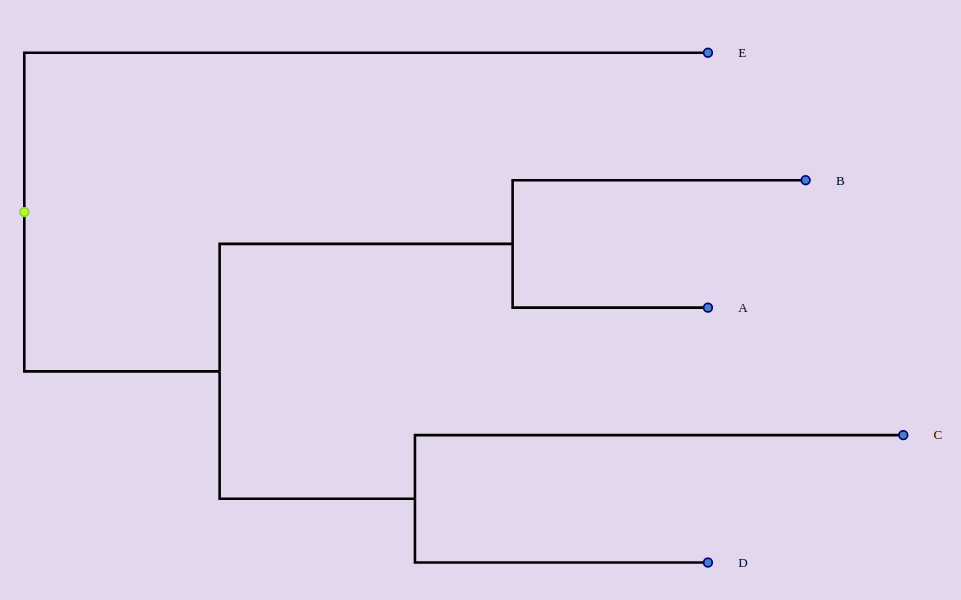
From newick
<vue-phylogram :newick="newick"></vue-phylogram>
 data () {
    return {
        newick : "(((A:0.2, B:0.3):0.3,(C:0.5, D:0.3):0.2):0.3, E:0.7):1.0"
        ....
From Json String
Be careful, after the version 2.1.2, inputTree is not an object anymore but a String.
<vue-phylogram :inputTree="tree"></vue-phylogram>
Each node can have these attributes :
- id : if not, will be computed. Be careful, to map metadata on nodes, they must have an id.
- name : if not, the node label won't be displayed.
- length : the length of the branch before the node. If not, the length will be 0.
- branchset : the list of the nodes starting from this node. If absent, the node will be a leaf of the tree.
 data () {
    return {
        tree: `{
        "id": "ABCDE",
        "branchset": [
          {
            "id": "ABCD",
            "length": 0.2,
            "branchset": [
              {
                "length": 0.3,
                "id": "AB",
                "name": "AB",
                "branchset": [
                  {
                    "name": "A",
                    "id": "A",
                    "length": 0.2
                  },
                  {
                    "id": "B",
                    "name": "B",
                    "length": 0.3
                  }
                ]
              },
              {
                "length": 0.2,
                "id": "CD",
                "name": "CD",
                "branchset": [
                  {
                    "id": "C",
                    "name": "C",
                    "length": 0.5
                  },
                  {
                    "id": "D",
                    "name": "D",
                    "length": 0.3
                  }
                ]
              }
            ]
          },
          {
            "id": "E",
            "name": "E",
            "length": 0.7
          }
        ]
      }`
        ....
Generic layout
These props set up the generic layout :
- width (default : 600)
- height (default : 400)
- margin (default : {top:10, right;10, bottom:10, left:10})
- labelWidth : space allowed to display the labels (default : 200)
Display a cladogram or a phylogram
A cladogram does not represent the branch lengths instead of the phylogram.
Display a phylogram (default)
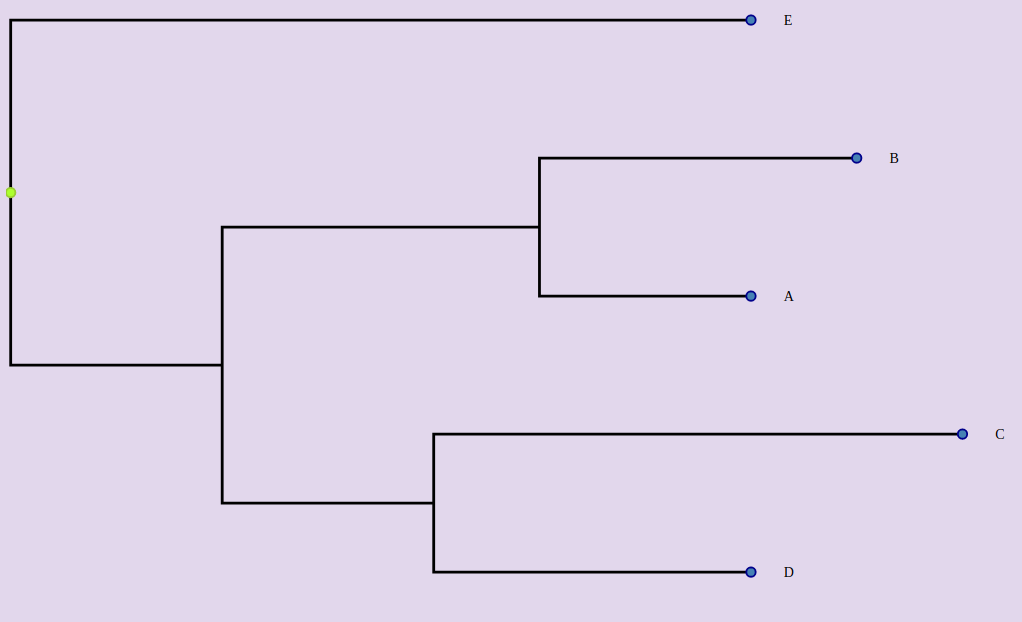
<vue-phylogram :newick="newick"></vue-phylogram>
or
<vue-phylogram :newick="newick" :branch-lengths="true" ></vue-phylogram>
or
<vue-phylogram :newick="newick" branch-lengths ></vue-phylogram>
Display a cladogram
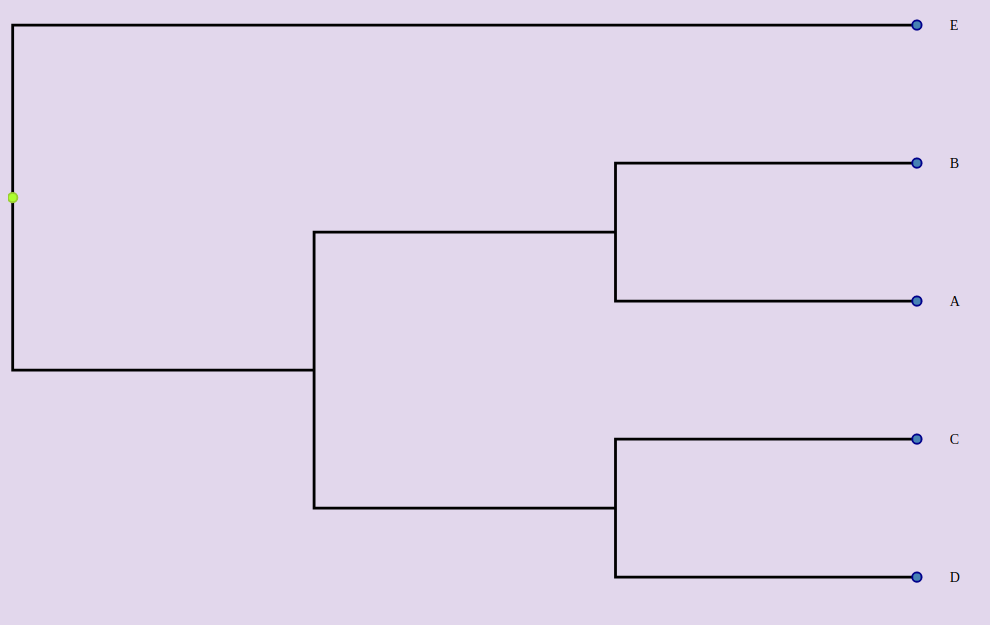
<vue-phylogram :newick="newick" :branch-lengths="false" ></vue-phylogram>
Display tree with right or smooth angles
Display tree with right angles (default)
<vue-phylogram :newick="newick" right-angle></vue-phylogram>
<vue-phylogram :newick="newick" :right-angle="true" ></vue-phylogram>
Display tree with smooth angles
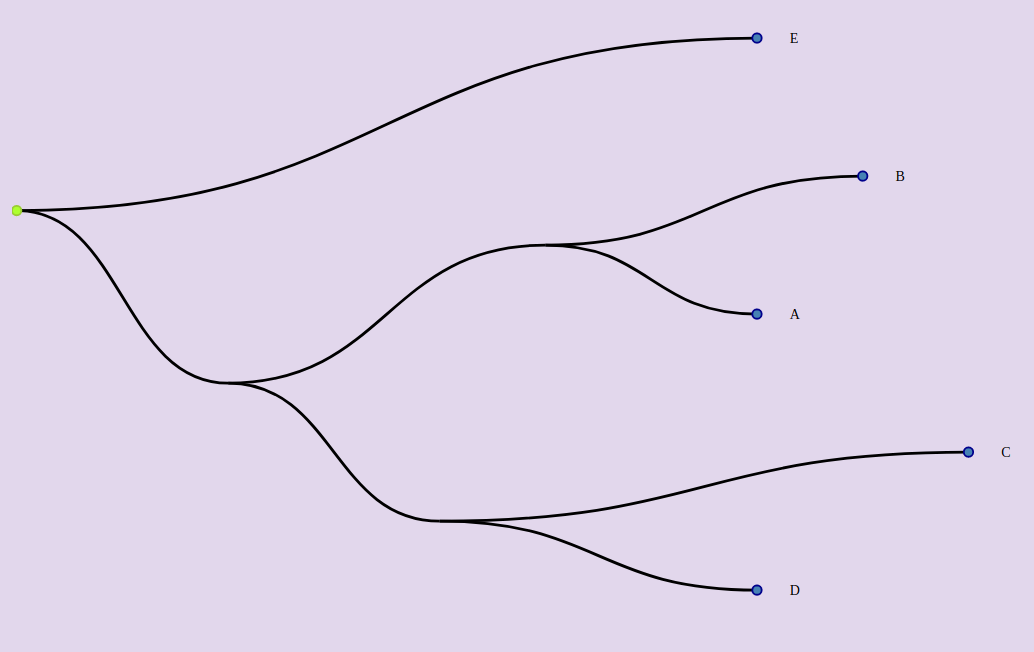
<vue-phylogram :newick="newick" :right-angle="false" ></vue-phylogram>
Circular layout
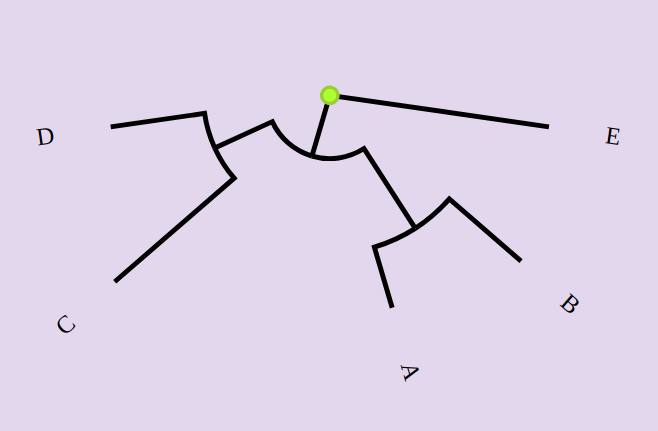
By default, the tree is displayed in a linear way. If you want to display the tree as a circle:
<vue-phylogram :newick="newick" circular ></vue-phylogram>
Display leaves
Leaves are displayed by default. To hide them:
<vue-phylogram :newick="newick" :display-leaves="false" ></vue-phylogram>
Display inner nodes
Inner nodes are hiddent by default. To show them:
<vue-phylogram :newick="newick" :display-inner-nodes="true" ></vue-phylogram>
Display leaf labels
The leaf labels are displayed by default. To hide them:
<vue-phylogram :newick="newick" :display-leaf-labels="false" ></vue-phylogram>
Display inner labels
The inner labels are hidden by default. To show them:
<vue-phylogram :newick="newick" :display-inner-labels="true" ></vue-phylogram>
Align labels
By default, labels are displayed close to the nodes. If you want to right align them :
<vue-phylogram :newick="newick" align-labels ></vue-phylogram>
Space for labels
If you want to increase or reduce the width of the space assigned to the labels, use the label-width prop:
<vue-phylogram :newick="newick" :label-width=400 ></vue-phylogram>
Display support values
Support values (e.g bootstrap values) can be read from newick string following the two ways described [here](https://link.
In the json object, the source node must have a key called "support":
"branchset": [
          {
            "id": "ABCD",
            "support":85,
            "length": 0.2,
            "branchset": [
              {
                "length": 0.3,
                "id": "AB",
                "support":90,
                "name": "AB",
                "branchset": [
                ...
Metadata
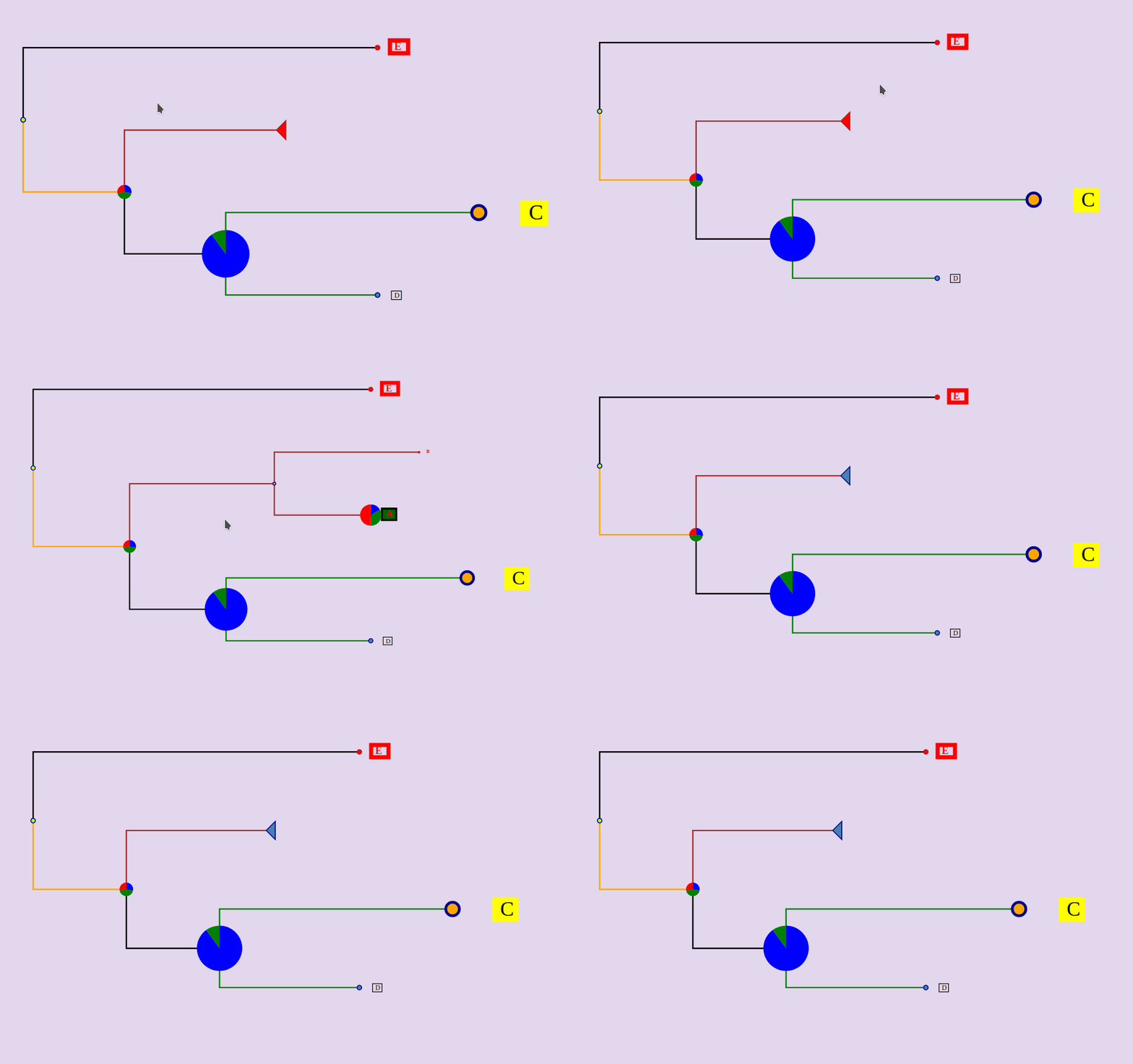
Branch colors
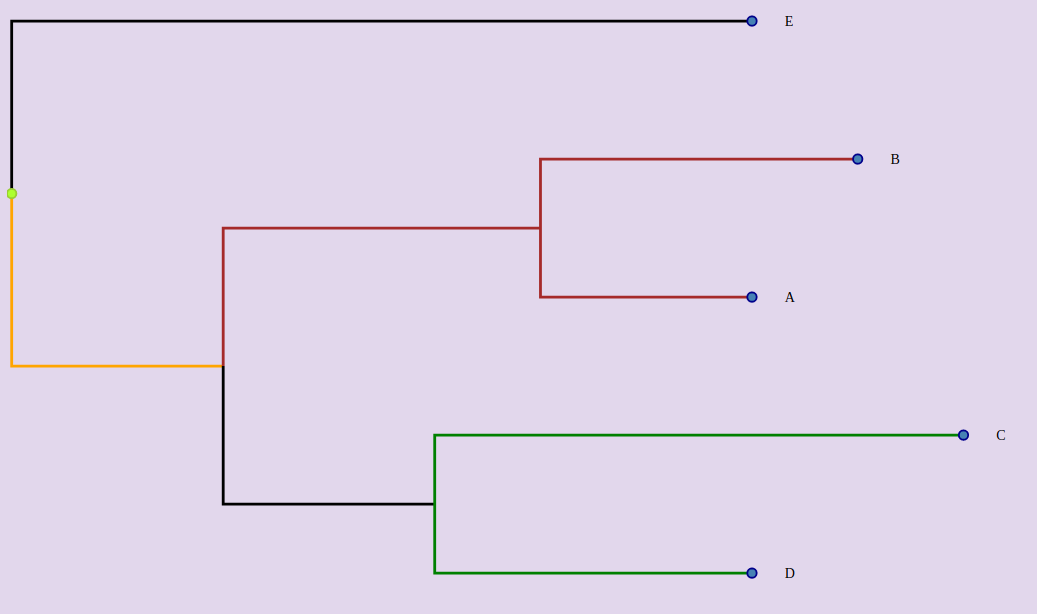
<vue-phylogram :inputTree="tree" :branch-styles="branchStyles">
The branches are identified by the node that they reach (type:'to') or that they start from (type:'from') or both (type:'both') (default)
branchStyles: {
            CD: {
              color: 'green',
              type: 'from'
            },
            ABCD: {
              color: 'orange',
              type: 'to'
            },
            AB: {
              color: 'brown',
              type: 'both'
            }
          }
Node styles
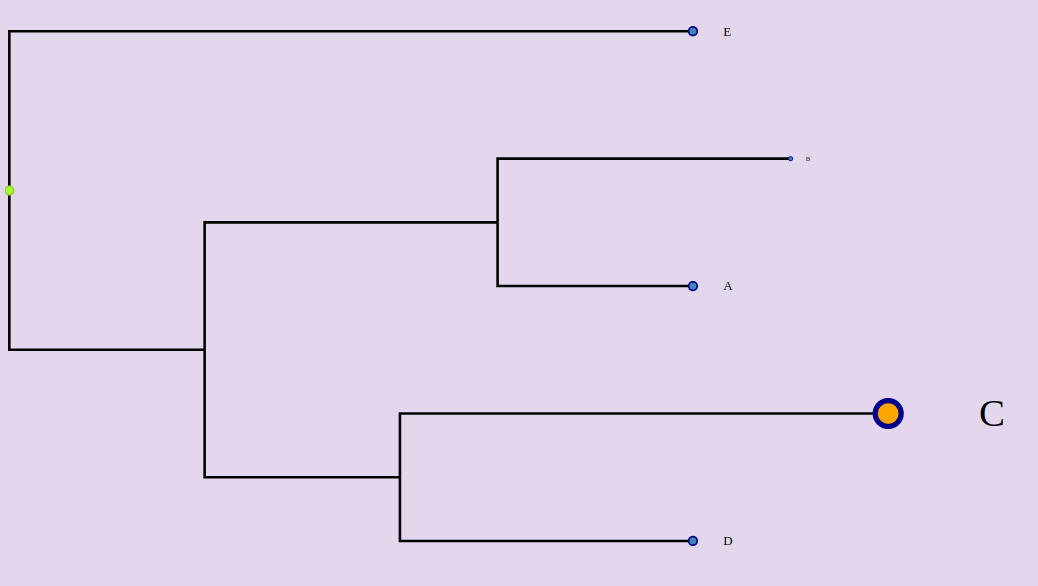
Size and color can be set for each leaf node
<vue-phylogram :inputTree="tree" :node-styles="nodeStyles">
nodeStyles: {
            C: {
              size: 3,
              color: 'orange'
            },
            B: {
              size: 0.5
            }
          }
        },
Label styles
<vue-phylogram :inputTree="tree" :label-styles="labelStyles">
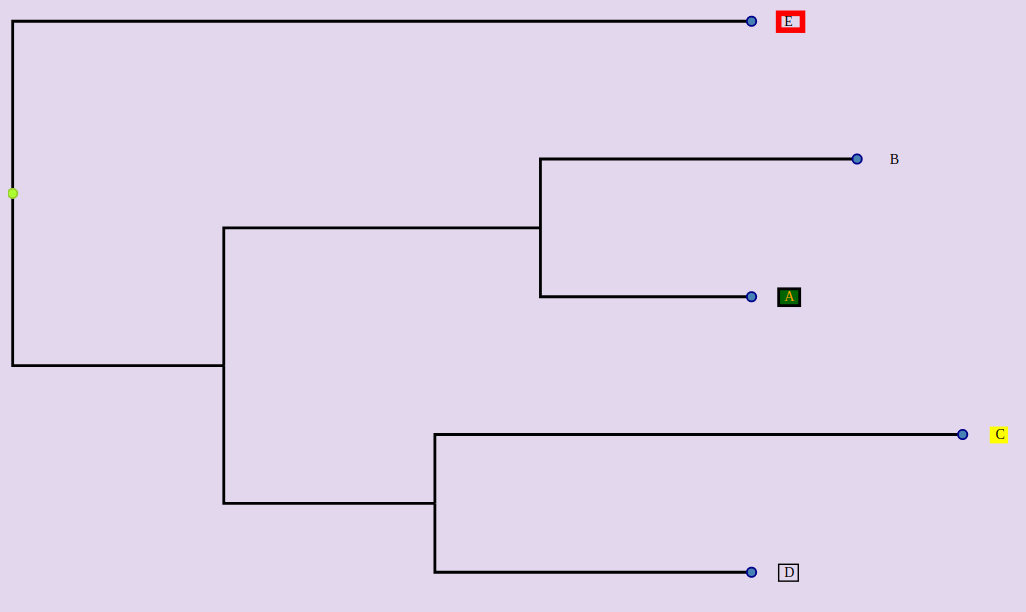
Background, border and stroke colors can set for each label.
<vue-phylogram :inputTree="tree" :label-styles="labelStyles">
  labelStyles: {
            A: {
              color: 'orange',
              background: 'darkgreen',
              borderWidth: 2
            },
            C: {
              background: 'yellow'
            },
            D: {
              borderWidth: 1
            },
            E: {
              borderWidth: 4,
              borderColor: 'red'
            }
          },
Display pies on nodes
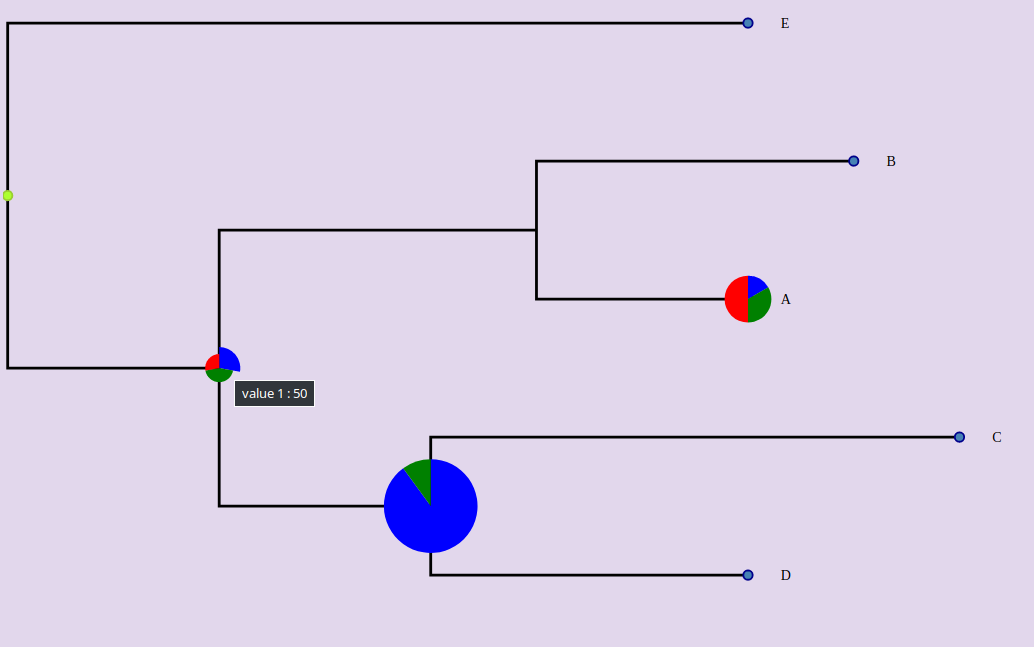
Hover a part of the pie to display the corresponding values.
<vue-phylogram :inputTree="tree" :pies="pies">
Be careful, the ids of the nodes must be well specified.
pies: {
            A: {
              data: [
                { label: 'value 1', value: 10, color: 'blue' },
                { label: 'value 2', value: 20, color: 'green' },
                { label: 'value 3', value: 30, color: 'red' }
              ],
              size: 5
            },
            ABCD: {
              data: [
                { label: 'value 1', value: 50, color: 'blue' },
                { label: 'value 2', value: 80, color: 'green' },
                { label: 'value 3', value: 50, color: 'red' }
              ],
              size: 3
            },
            CD: {
              data: [
                { label: 'value 1', value: 90, color: 'blue' },
                { label: 'value 2', value: 10, color: 'green' }
              ],
              size: 10
            }
          }
If you want to hide pies :
<vue-phylogram :inputTree="tree" :pies="pies" :show-pies="false">
Display glyphs beside leaves
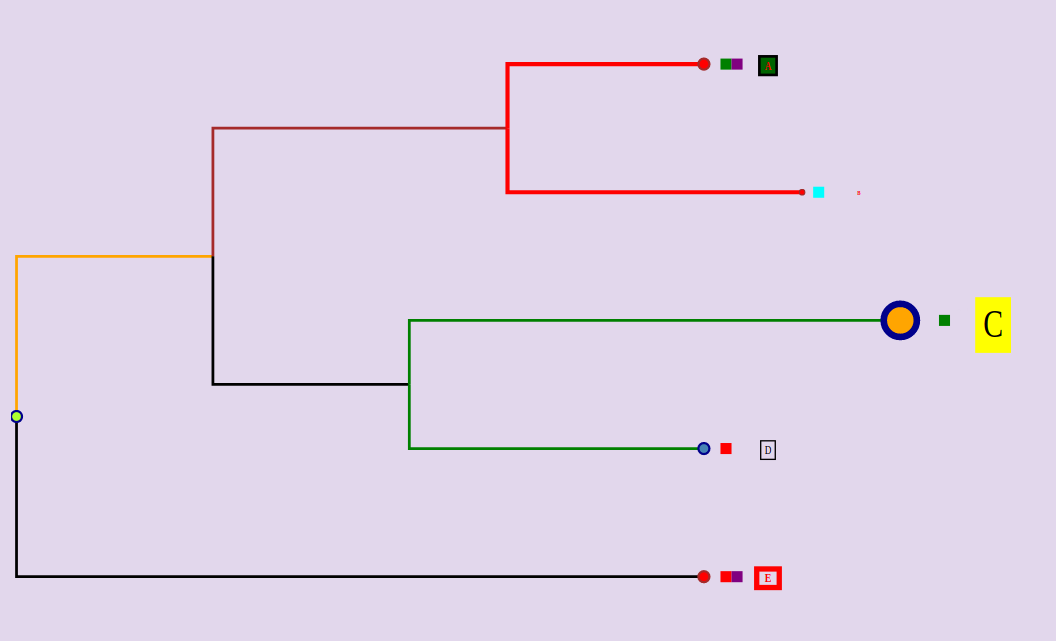
<vue-phylogram :inputTree="tree" :glyphs="glyphs">
The glyphs must be an array with this format :
glyphs: [
            {
              label: 'Good/Bad',
              categories: [
                {
                  label: 'good',
                  style: { fill: 'green' },
                  ids: ['A', 'C']
                },
                {
                  label: 'bad',
                  style: { fill: 'red' },
                  ids: ['D', 'E']
                }
              ]
            },
            {
              label: 'Yes/No',
              categories: [
                {
                  label: 'yes',
                  style: { fill: 'cyan' },
                  ids: ['B']
                },
                {
                  label: 'no',
                  style: { fill: 'purple' },
                  ids: ['A', 'E']
                }
              ]
            }
          ]
If you want do hide glyphs:
<vue-phylogram :inputTree="tree" :glyphs="glyphs" :show-glyphs="false">
If you don't want that a tooltip is displayed when a glyph is hovered:
<vue-phylogram :inputTree="tree" :glyphs="glyphs" :show-glyph-labels="false">
Select nodes from props
Use the "selected" props and put the node ids separateb by commas.
<vue-phylogram :inputTree="tree" :selected="AB,E">
Collapse nodes from props
Use the "selected" props and put the node ids separateb by commas.
<vue-phylogram :inputTree="tree" :collapsed="AB,CD">
Layout mode
By default, branches are not ordered (layout-mode=0) To sort the branches by ascending length:
<vue-phylogram :inputTree="tree" :layout-mode="1">
To sort the branches by descending length:
<vue-phylogram :inputTree="tree" :layout-mode="2">
Events
select-nodes: when the user selects or deselect one node, returns the array of the selected node ids.
collapse-nodes: when the user collapses a node or uncollapse a node, returns the array of the collapsed node ids.
click-node
right-click-node
hover-node
click-outside : click outside the nodes
click-label
right-click-label
hover-label
Project setup
npm install
Compiles and hot-reloads for development
npm run serve
Compiles and minifies for production
npm run build
Run your unit tests
npm run test:unit
Lints and fixes files
npm run lint